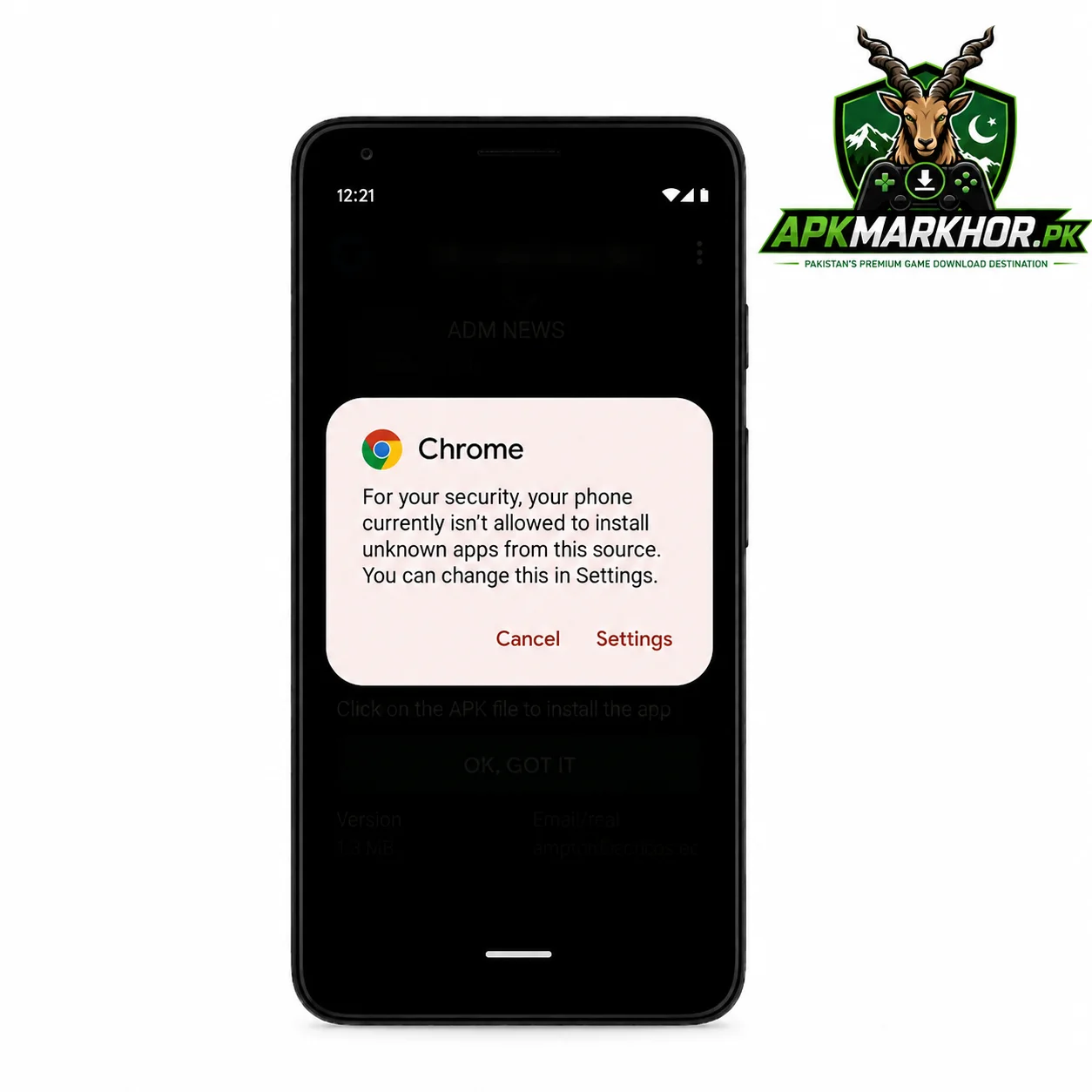
How to Enable Install Unknown Apps on Android (Samsung, Xiaomi, Oppo, Vivo & Stock Android)
Every APK we review on this site needs this same setting turned on first. Instead of repeating it in every review, here’s the full guide, covering every major Android brand people in Pakistan actually use.
Short version: since Android 8, there’s no single global switch anymore. You allow one specific app your browser or file manager to install APKs, not your whole phone. The exact menu name changes by brand, which is why this trips people up.
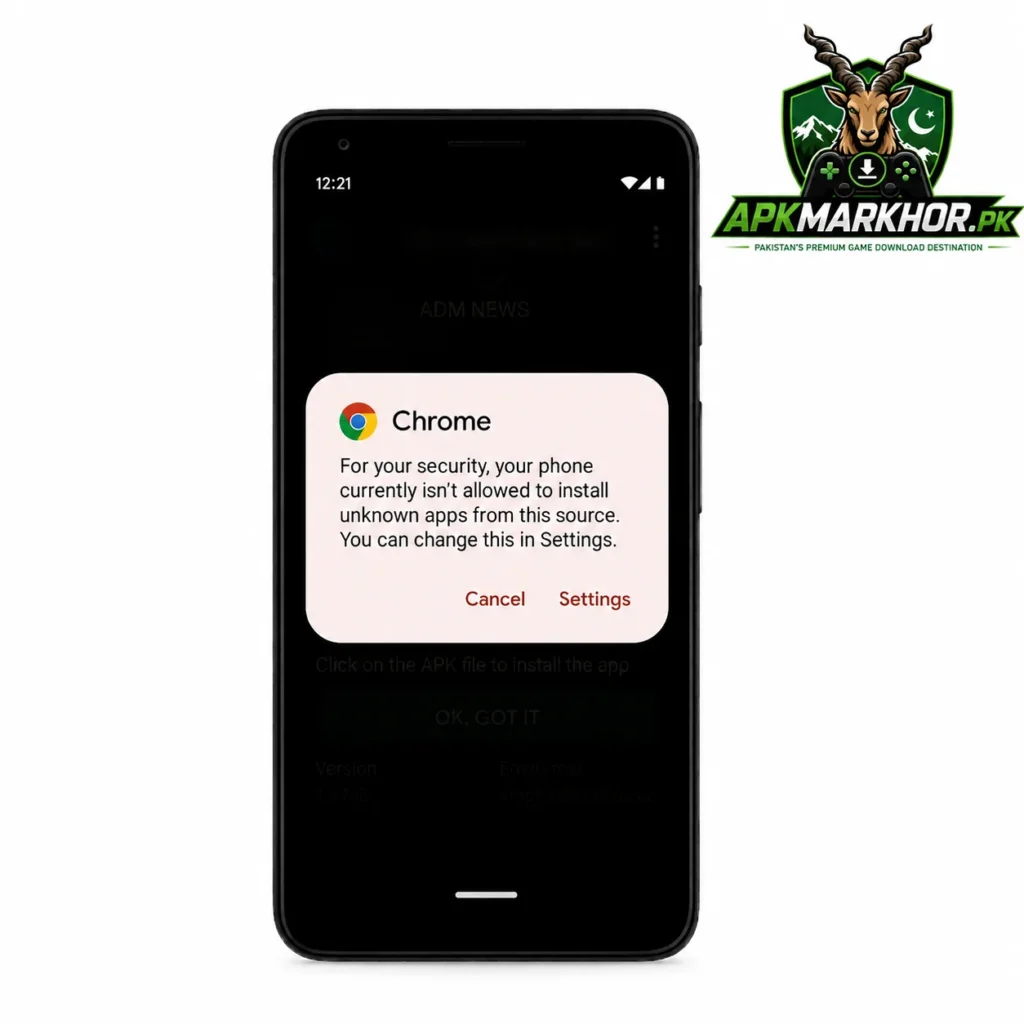
Quick Reference
| Android Version / Brand | Menu Path |
|---|---|
| Stock Android (Pixel, etc.), Android 8+ | Settings > Apps > Special app access > Install unknown apps |
| Samsung (One UI) | Settings > Security and Privacy > More security settings > Install unknown apps |
| Xiaomi (MIUI / HyperOS) | Settings > Apps > Manage apps > [select app] > Install unknown apps (or Privacy protection > Special permissions > Install unknown apps) |
| Oppo (ColorOS) | Settings > Passwords & Security > System Security > Install Unknown Apps |
| Vivo (Funtouch OS 4.0+) | Settings > More settings > Permission management (Applications) > Install unknown apps |
| Android 7 and older, any brand | Settings > Security > Unknown sources (single toggle) |
This table covers the paths as documented by each brand and by us on the devices we tested. Menu wording can shift slightly between software updates, so if a label doesn’t match exactly, look for anything mentioning “unknown apps” or “unknown sources” nearby.
Why This Setting Exists
Android only trusts the Play Store by default. Anything installed from somewhere else a browser download, a file manager, a link someone sent you counts as an “unknown” source, and Android blocks it until you say otherwise.
Before Android 8 (Oreo), this was one global switch. Turn it on, and every app on the phone could install APKs. From Android 8 onward, Google split this into a per-app permission instead. You now allow one specific app say, Chrome to install unknown APKs. Every other app stays blocked unless you allow it separately.
This is safer than the old system, but it also means the setting looks different depending on which app you’re trying to grant permission to, and which brand’s Android skin you’re using.
Stock Android (Android 8–15)
This applies to Pixel phones and other close-to-stock Android devices.
- Open Settings.
- Go to Apps.
- Tap Special app access (on some versions this sits under an “Advanced” or three-dot menu).
- Tap Install unknown apps.
- Select the app you’ll use to open the APK — usually your browser or file manager.
- Toggle on Allow from this source.
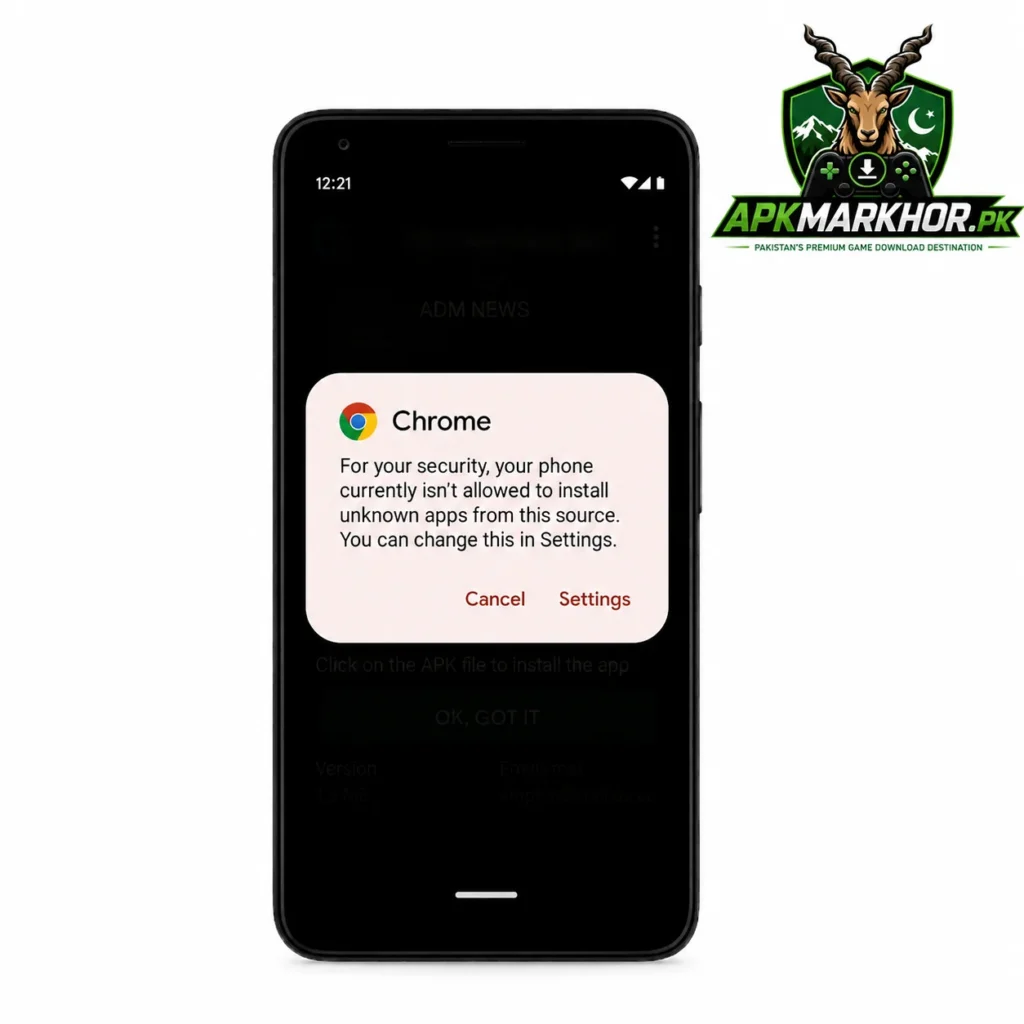
Once that’s on, go back to the APK file and tap it again. It should install without the warning this time.
Samsung (One UI)
- Open Settings.
- Tap Security and Privacy (older One UI versions may just say Security).
- Tap More security settings.
- Tap Install unknown apps.
- Choose the app — Chrome, Samsung Internet, My Files, whichever you’re using to install the APK.
- Toggle the switch on.
Xiaomi (MIUI / HyperOS)
Xiaomi’s menu wording shifts a bit between MIUI 12–14 and HyperOS, but the location is similar:
- Open Settings.
- Go to Apps, then Manage apps — or on some builds, Privacy protection > Special permissions.
- Tap Install unknown apps.
- Select the app you’re installing the APK through.
- Toggle Allow from this source.
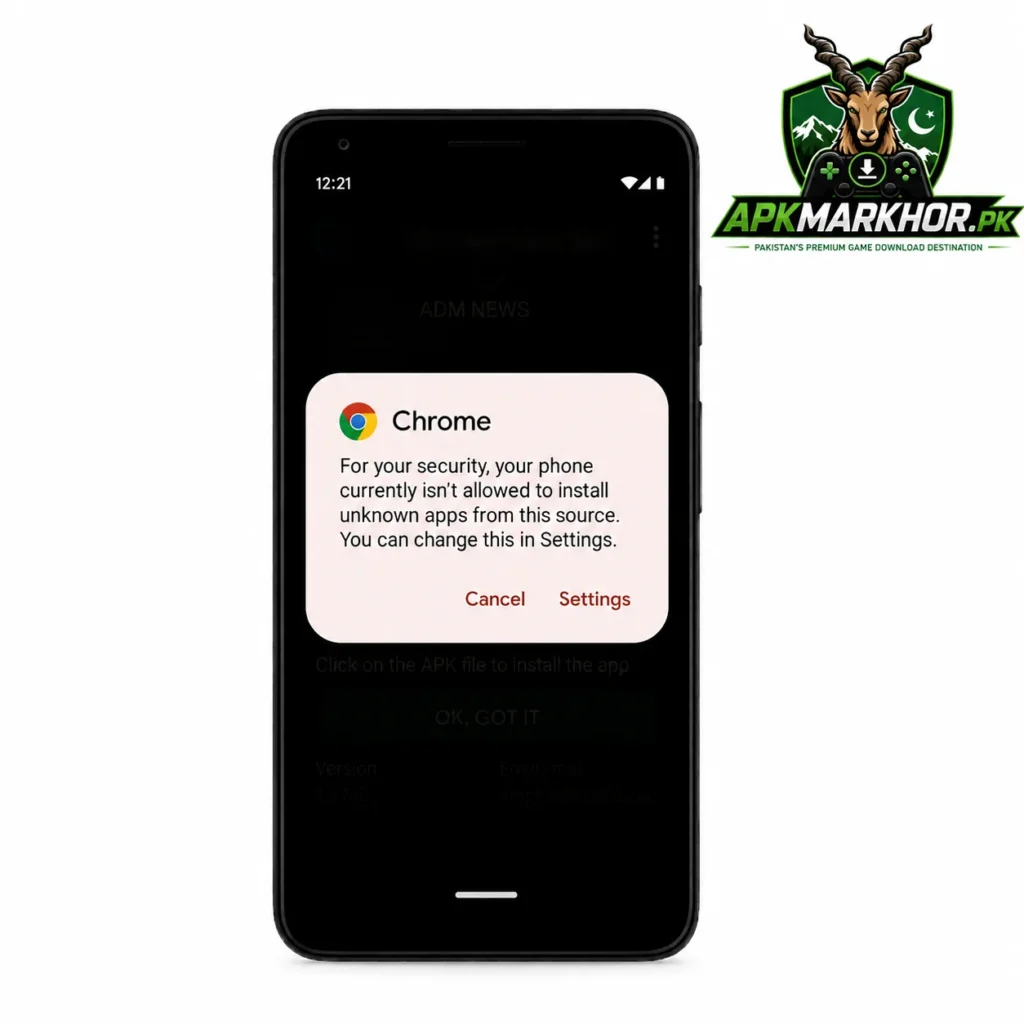
On some MIUI versions, this same prompt appears automatically the moment you tap an APK file — tap Settings on that pop-up, and it takes you straight to the toggle.
We’d recommend turning this off again for that app once you’re done installing, since HyperOS and MIUI both keep the permission active until you switch it back.
Oppo (ColorOS) Tested on Oppo F21 Pro, Android 12
This is the exact path we used while testing the M999 APK on our own Oppo F21 Pro:
- Open Settings.
- Tap Passwords & Security.
- Tap System Security.
- Tap Install Unknown Apps.
- Select the app we used our browser after downloading the APK directly.
- Toggle it on.
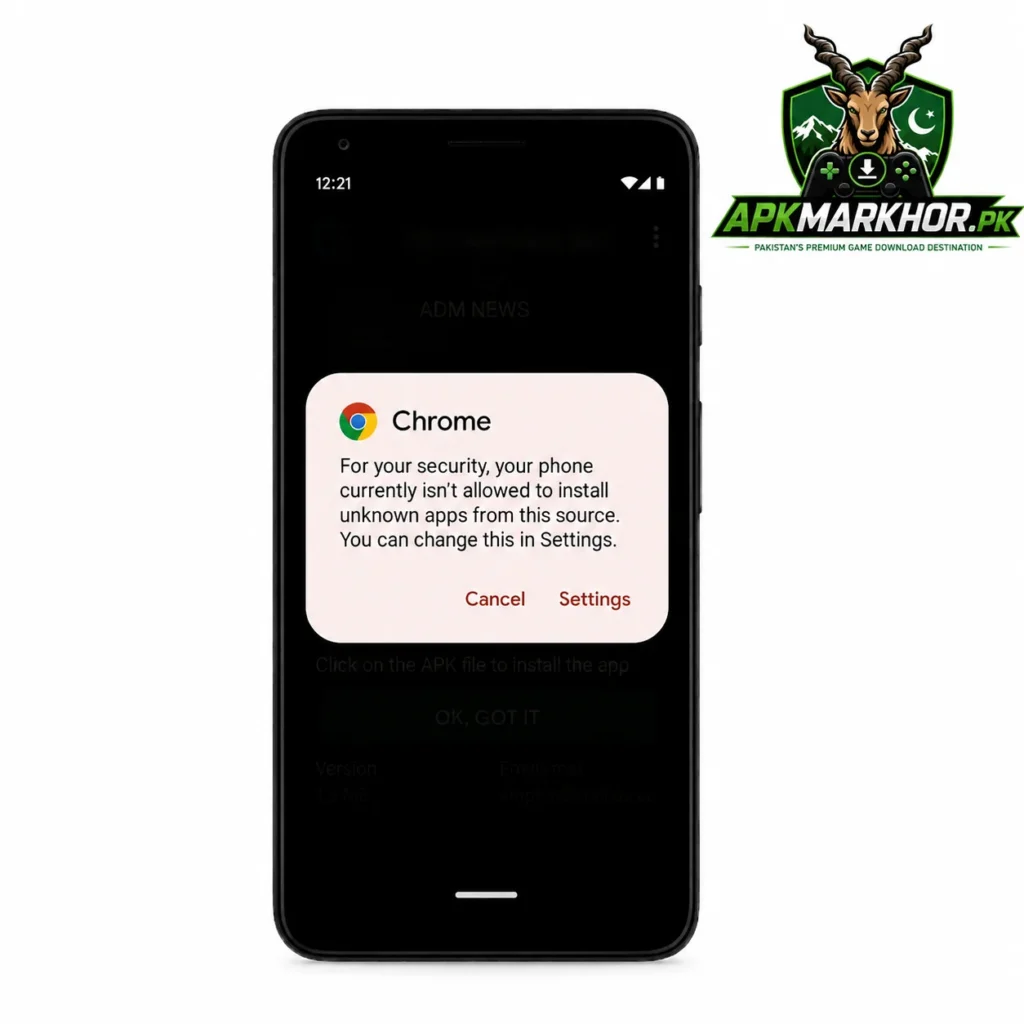
On our device, the whole process took under 20 seconds, and the APK installed normally right after.
Vivo (Funtouch OS) Tested on Vivo Y02t, Android 13
This is the path we used while testing PAK PLAY game App, PKAvia, HH98, XC777 and Z777 on our Vivo Y02t:
- Open Settings.
- Tap More settings.
- Tap Permission management (sometimes labeled Applications).
- Tap Install unknown apps.
- Select the app you’re using.
- Allow it.
We didn’t run into anything unusual here — the toggle worked the same both times we tested it, for two different APKs.
Android 7 and Older
If your phone is running Android 7 (Nougat) or earlier, there’s no per-app permission — just one switch:
- Open Settings.
- Tap Security (or Lock screen and security, depending on brand).
- Toggle Unknown sources on.
- Confirm on the warning prompt.
We haven’t tested this ourselves on a live Android 7 device — this is documented behavior, not something we verified hands-on. If you’re on Android 8 or newer, use the per-app steps above instead.
Common Problems
- The toggle is greyed out. Some phones require you to have already attempted to open an APK once before the per-app permission becomes selectable. Try tapping the downloaded file first, then go back into Settings.
- I turned it on, but installation still fails. Double-check you allowed the same app you’re using to open the file. Allowing Chrome doesn’t help if you’re actually opening the APK through a file manager, or vice versa.
- Play Protect is blocking it separately. Install Unknown Apps and Play Protect are two different checks. Turning on the first doesn’t disable the second — Play Protect may still flag or scan the file separately. That’s a different setting, not something covered here.
- The menu names don’t match what I’m seeing. Software updates sometimes rename these menus. Searching your Settings app directly for “unknown” is usually faster than following menu paths on an updated version.
A Note on Safety
Turning this setting on doesn’t make an APK safe it just allows the installation to happen. The setting itself has no opinion on what’s inside the file.
We’d suggest only enabling this for the specific app you’re using to install from a source you trust, and switching it back off once you’re done, especially on Xiaomi and Samsung devices where it stays on indefinitely otherwise.
If you’re installing an APK because it isn’t on the Play Store, that also means it hasn’t gone through Play Protect’s standard vetting. Downloading only from an app’s official website not a random third-party APK mirror is the one step that matters most here.
Frequently Asked Questions
Only the first time for a given app. Once you’ve allowed your browser or file manager to install unknown apps, that permission stays on for future APKs installed the same way, until you turn it off.
We wouldn’t recommend it. Leaving it on means that app can install APKs anytime, without asking again. Turning it off after each install is a small extra step that closes that door.
Because they’re separate systems. This setting controls whether installation is allowed at all. Play Protect is a scan that runs independently and can still flag a file even after you’ve allowed the install.
Try searching “unknown” directly inside your Settings app’s search bar. Brand updates sometimes move or rename this menu without much warning.
Yes. The setting isn’t specific to any app category it applies to any APK installed outside the Play Store, whether that’s a game, a utility, or anything else.
Summary
The exact menu changes by brand, but the underlying step is the same everywhere: allow the one app you’re using browser or file manager to install from unknown sources, then open the APK again.
We’ve walked through this exact process ourselves while testing 888PKR Game, M999 on an Oppo F21 Pro, and PKR365, A6 Win game and HE786 Game on a Vivo Y02t the steps above match what we did on our own devices, not just documentation.
This guide is based on our own device testing (Oppo F21 Pro, Android 12; Vivo Y02t, Android 13) combined with publicly documented steps for Samsung and Xiaomi, which we don’t currently own for direct testing. Software updates can shift menu names slightly if a step doesn’t match your exact screen, search “unknown” in your Settings app.

Muhammad Arif Android Reviewer at apkmarkhor.pk
Muhammad Arif has been testing and reviewing Android apps and APKs for apkmarkhor.pk since early 2026, with a focus on installation processes, app performance, and permission and safety checks on real devices. Rather than relying on store listings or press material, he installs each app himself, documents what actually happens, and reports it including what wasn’t tested.
Every review under this byline lists the device used, Android version, and testing duration, with a clear line drawn between verified results and anything APKMARKHOR could not independently confirm.
Email: muhammadarif@gmail.com
 Rattings and reviews